As a buyer, once your order is complete you can rate the product you bought and the seller you bought it from. Here’s how.
Screens look different? We update PickFresh frequently based on user feedback. If your app looks different from these screenshots, check the App Store or Google Play for the latest update.
1. Find Your Completed Order
Tap the Your orders tab in the bottom navigation, then switch to the History tab. Tap the order you want to review — reviews only appear once an order is marked Completed or Delivered.
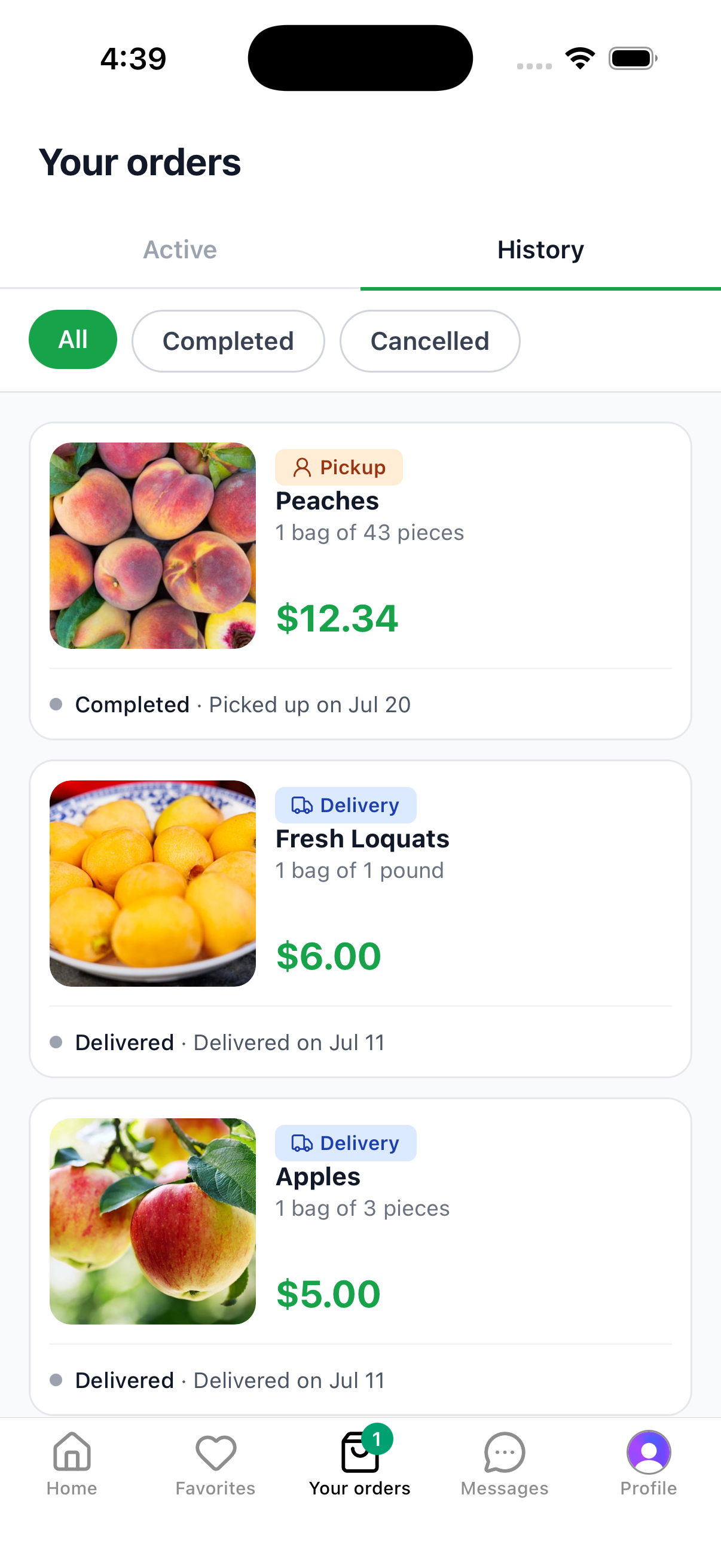
Are you also a seller? If you sell on PickFresh too, your bottom navigation shows Your store instead of Your orders. To find your purchases, tap the Profile tab and select Your orders.
2. Open Share Your Experience
On the Order details screen, scroll down past the seller info to the Share your experience section. You’ll see two cards: Rate the product (freshness, flavor & quality) and Rate the seller (pickup experience & communication).
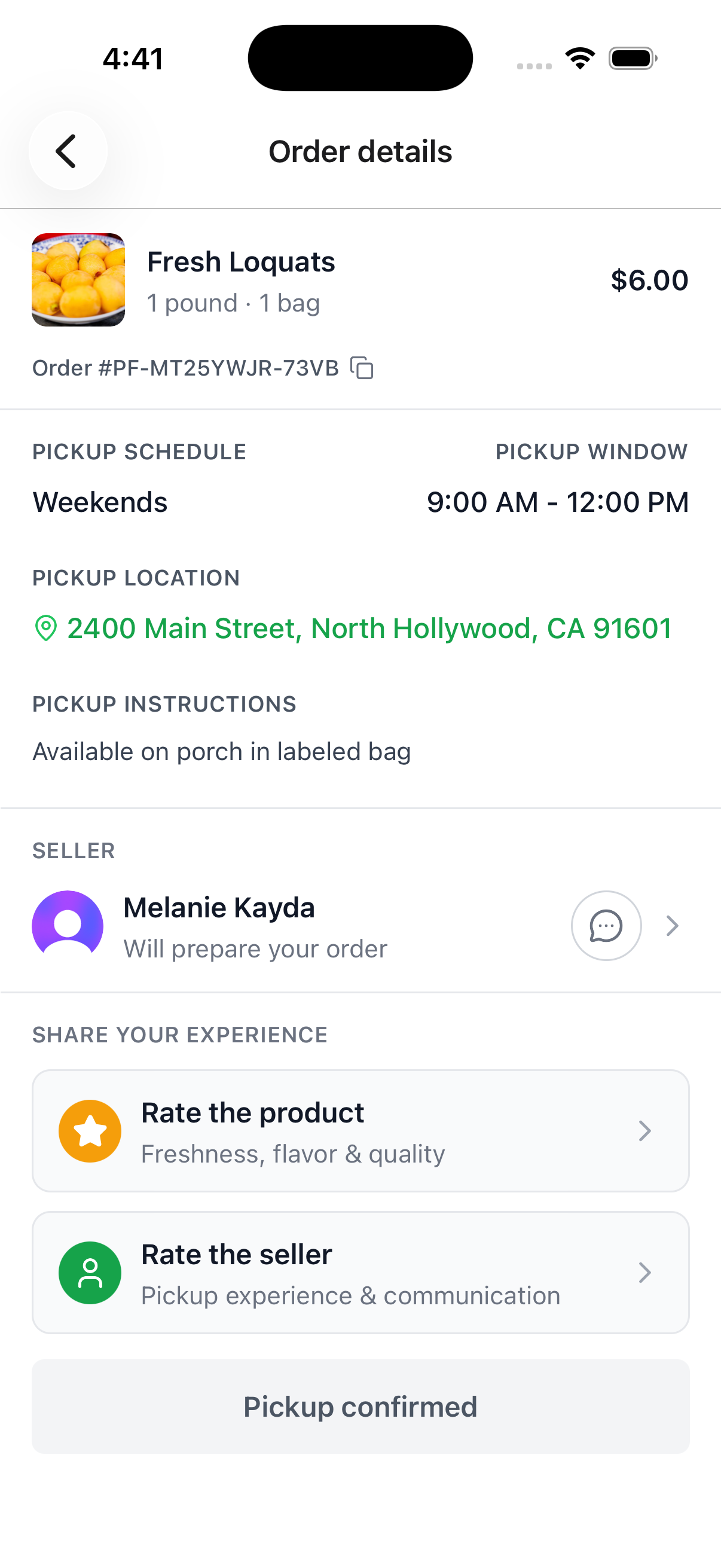
Delivery orders: Only Rate the product is shown. Delivery orders are fulfilled by PickFresh, so there’s no seller pickup to rate.
3. Rate the Product
Tap Rate the product. You’ll be walked through three star ratings, one screen at a time — Product freshness, Fruit flavour, and Ripeness satisfaction. Tap a star from 1 to 5, then tap Continue. You can tap Skip on any screen you’d rather not answer.
On the last screen, Final feedback, answer three quick questions — was the product as described, did the fruit meet your expectations, and would you buy it again — by choosing Yes, Somewhat, or No. Add an optional comment, then tap Submit.
You need at least one star rating to submit. Tap OK on the Feedback submitted confirmation to finish.
4. Rate the Seller
Back on Order details, tap Rate the seller. This one has four star ratings — Responsiveness, Timeliness, Friendliness, and Pickup experience. Rate each one and tap Continue, then tap Submit on the last screen.
All four ratings are required for a seller review. Tap OK on the Thank you! confirmation when you’re done.
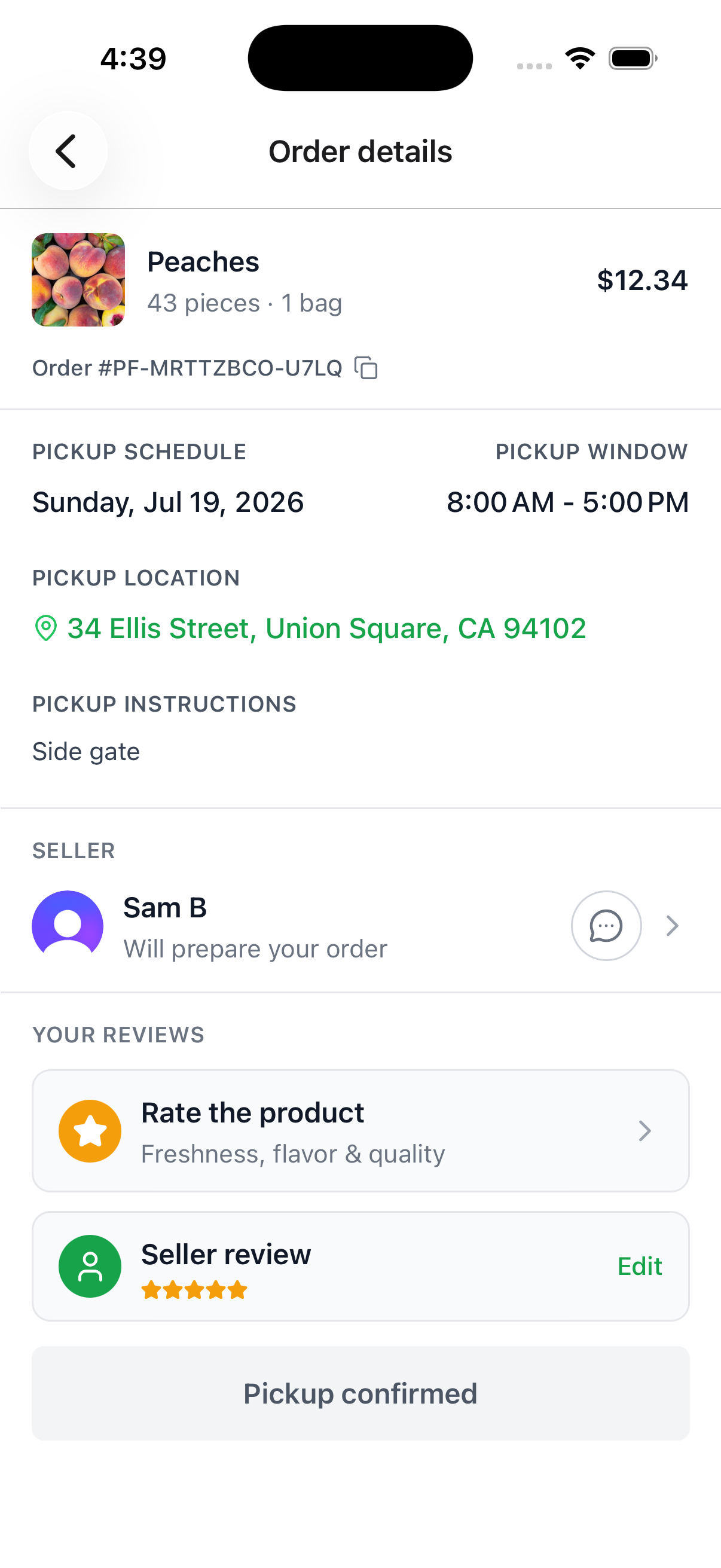
You don’t have to do both reviews at once. If you’ve only finished one, the section changes to Your reviews and the one you’ve left shows your stars with an Edit link, while the other still shows its Rate the… prompt.
5. Check Your Reviews
Once both are submitted, the section reads Your reviews and shows Product review and Seller review, each with the star rating you gave.
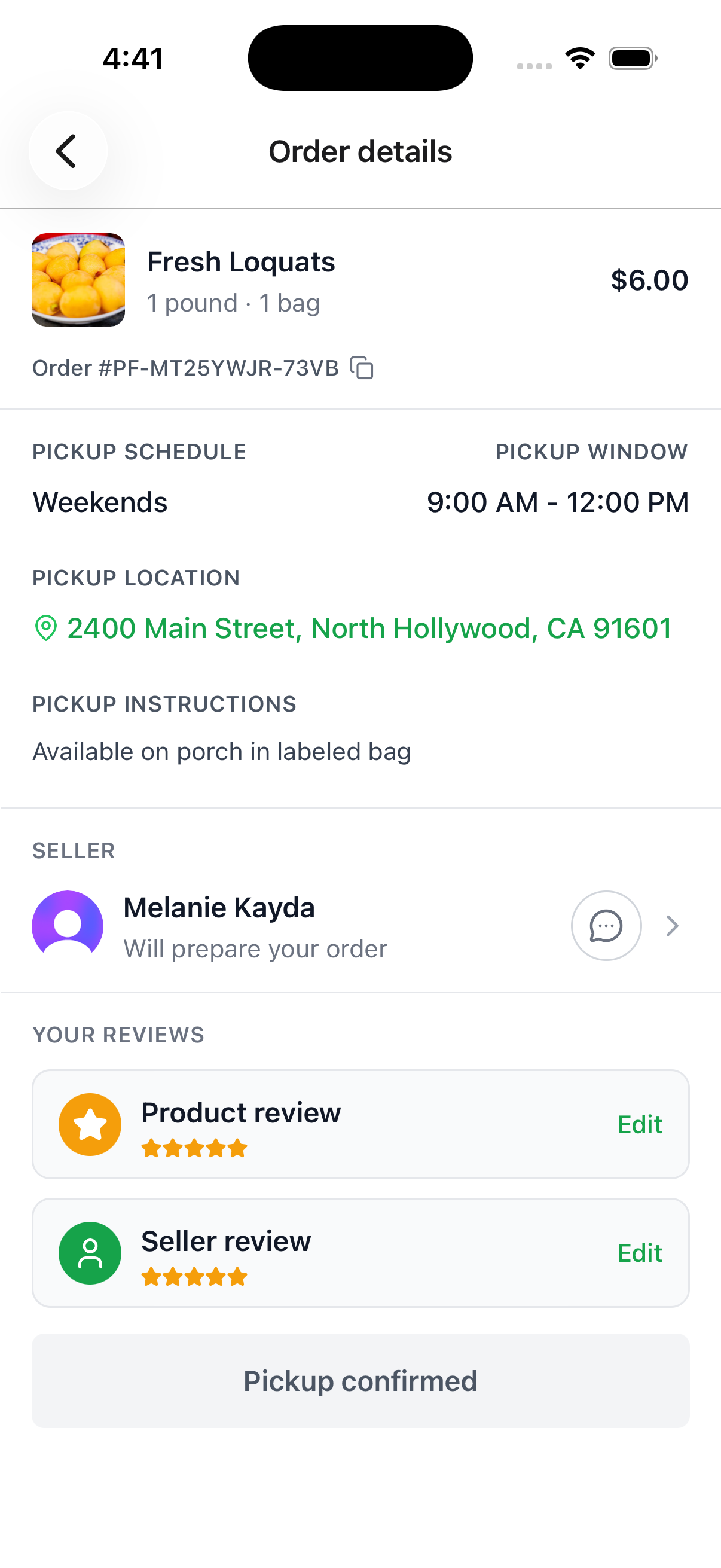
Note: You can change a seller review at any time — tap Edit and rate the four categories again. Product reviews are submitted once per order and can’t be changed afterward, so take a moment before you submit.