Can’t remember your password? No problem. Follow these steps to reset it and get back into your account.
Screens look different? We update PickFresh frequently based on user feedback. If your app looks different from these screenshots, check the App Store or Google Play for the latest update.
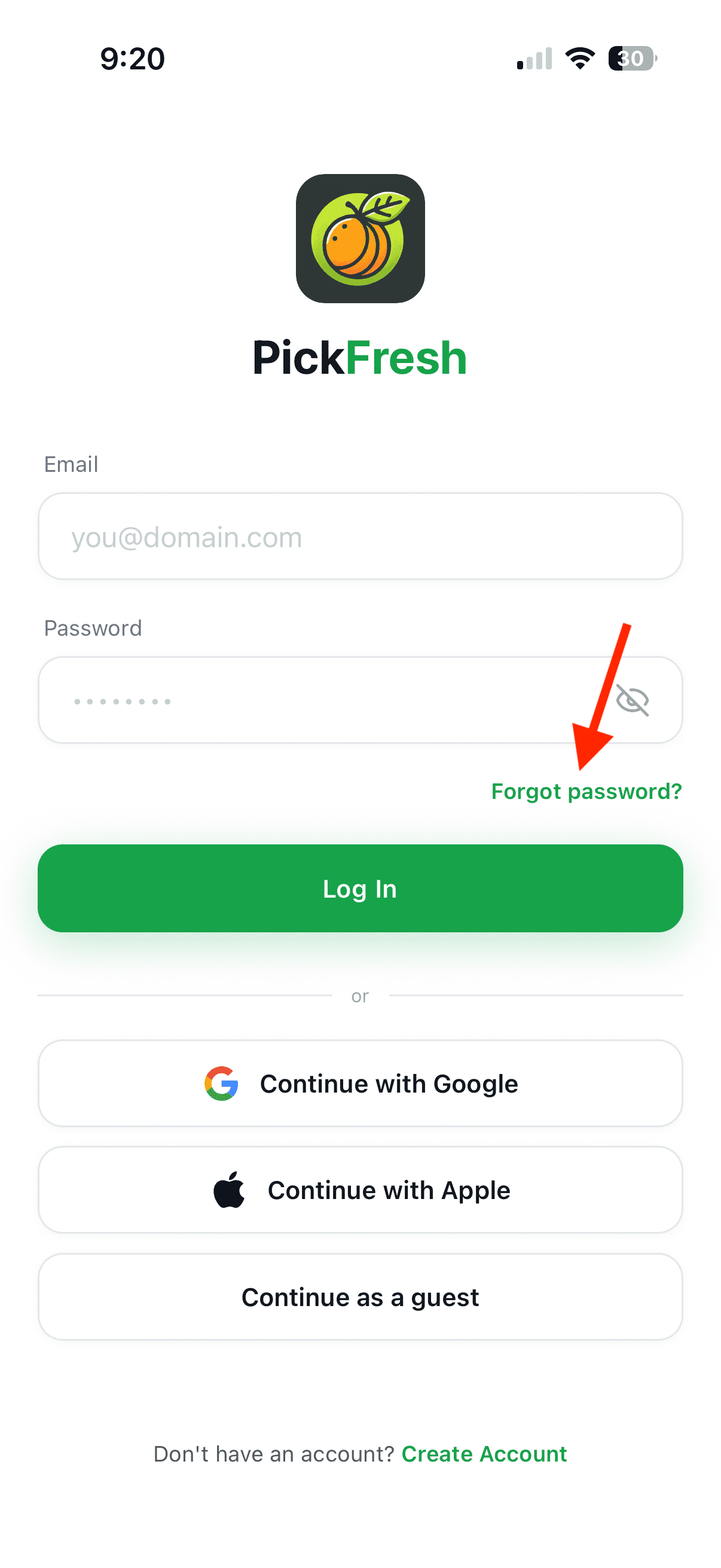
1. Tap Forgot Password
On the Log In screen, tap Forgot password? located just below the password field.
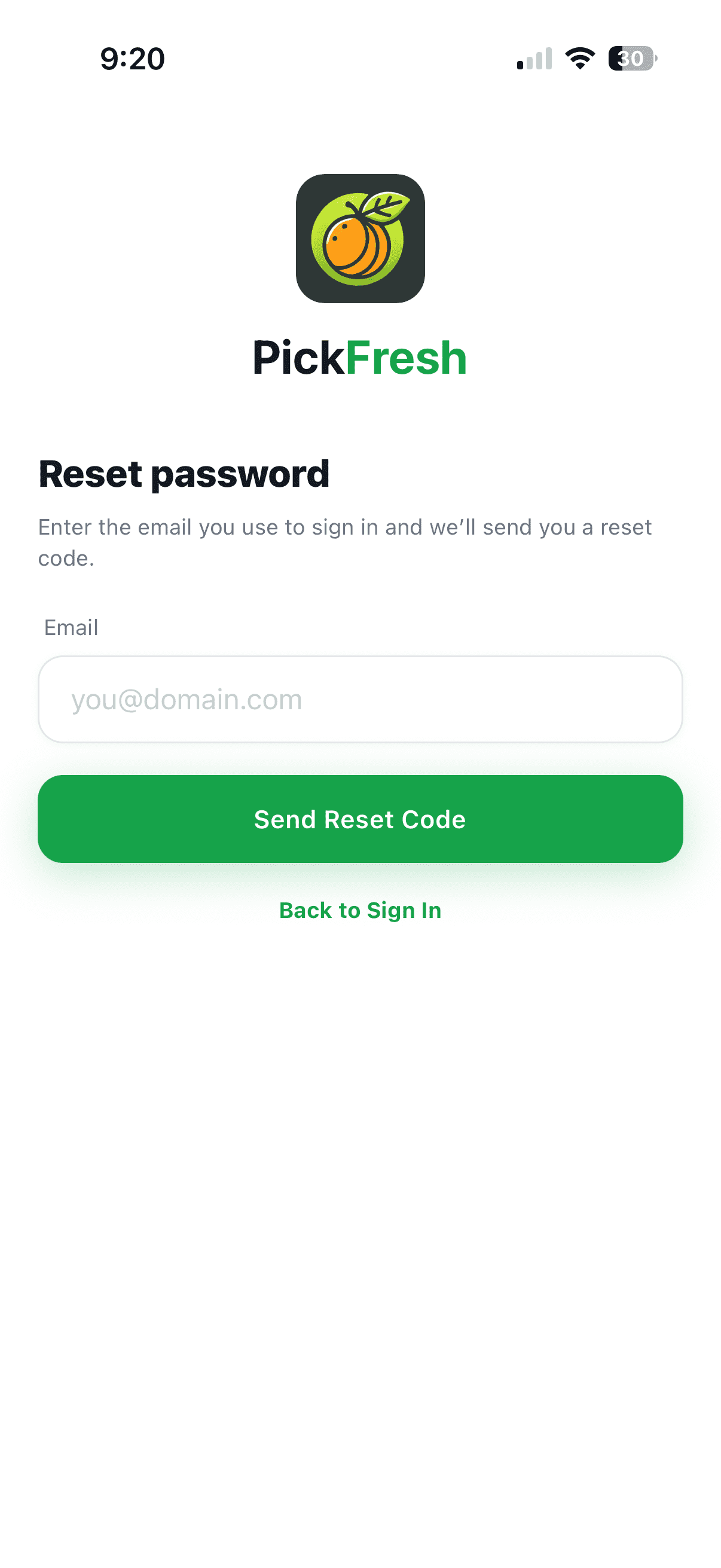
2. Enter Your Email
On the Reset password screen, enter the email address you use to sign in, then tap Send Reset Code. We’ll email you a reset code to confirm it’s really you.
3. Check Your Email
Open your inbox and find the email from PickFresh with your reset code. If you don’t see it within a few minutes, check your spam or junk folder.
4. Create a New Password
Enter the reset code, then choose a new password. Once it’s saved, tap Back to Sign In and log in with your new password.
Note: If you signed up using Continue with Google or Continue with Apple, you don’t have a PickFresh password. Just use the same Google or Apple button on the Log In screen to sign back in.